




Quick Answer
A DualShock 4 controller typically takes about two hours to charge from empty under suitable conditions, although battery age, temperature, cable quality, port output and use during charging can extend the time.
Use a compatible Micro-USB cable and a suitable USB power source. The light bar flashes slowly while charging and turns off when charging is complete, subject to the console’s settings and controller condition.
Key Facts
Charging time is not a fixed promise because the controller may continue consuming power while in use.
| Condition | Expected Effect | Action | Do Not Assume |
|---|---|---|---|
| Controller switched off | Fastest normal charging | Connect and leave idle | Every cable carries data and power equally |
| Playing while charging | Longer net charge time | Reduce brightness and vibration if needed | Two hours will still apply |
| Old battery | Shorter runtime and irregular charging | Assess battery condition | A cable will repair worn cells |
| Low-output or damaged port | Slow or no charging | Try an approved alternative | Any charger is compatible |
How It Works
The controller’s internal charging circuit manages the battery. The USB source provides power, but excessive or unsuitable voltage is not a shortcut to faster charging.
Rest Mode settings determine whether the PS4 supplies power to USB ports. If the controller does not charge while the console sleeps, check the console power-saving settings.
Micro-USB connectors wear and collect debris. Intermittent charging can come from the cable, port, source or battery, so troubleshoot one variable at a time.
How to Charge and Check Status
Connect the controller with a known-good compatible cable. Use the PS button or console status to check battery level. Allow it to charge while not in use and observe whether the light indication behaves normally.
If it fails, test another cable and console port, restart the controller with the reset button and avoid forcing the connector. Persistent faults may require service or battery replacement.
| Symptom | Likely Area | Next Check | Stop If |
|---|---|---|---|
| No light | Cable, source or port | Try known-good cable and port | Port is loose or hot |
| Charges only at an angle | Connector wear | Inspect and service | Movement causes heat |
| Charges but drains quickly | Battery ageing or high use | Compare idle runtime | Battery swells |
| Very slow charging | Use during charge or weak source | Charge switched off | Source is unapproved |
Compare the Main Options
Different sources can work when they meet the controller’s USB requirements, but convenience does not override compatibility.
| Charging Source | Advantage | Check | Limitation |
|---|---|---|---|
| PS4 USB port | Designed ecosystem | Rest Mode USB setting | Console must supply power |
| Compatible USB adaptor | No console needed | Correct USB output | Avoid unknown chargers |
| Power bank | Portable | Stable 5V USB output | Finite capacity |
| Power station USB | Long-duration portable source | Port and cable compatibility | Overkill for one controller |
UK Planning Considerations
Use chargers from reputable suppliers that meet applicable UK product-safety requirements. Replace damaged cables rather than taping exposed conductors.
Lithium batteries should not be charged on soft furnishings or left where heat cannot dissipate. Stop using a controller that becomes unusually hot, swells or smells abnormal.
For the underlying UK guidance or current figures, check PlayStation support guidance. Published tariffs, standards and safety advice can change, so verify the source again before acting.
Relevant OUPES UK Options
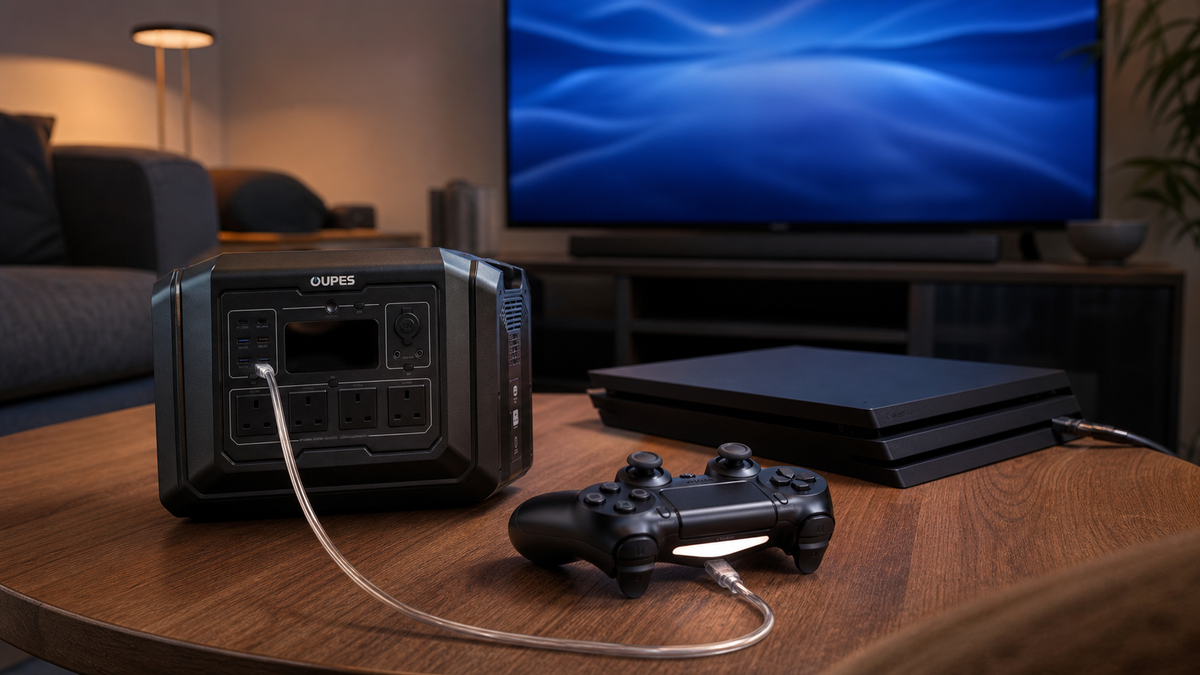
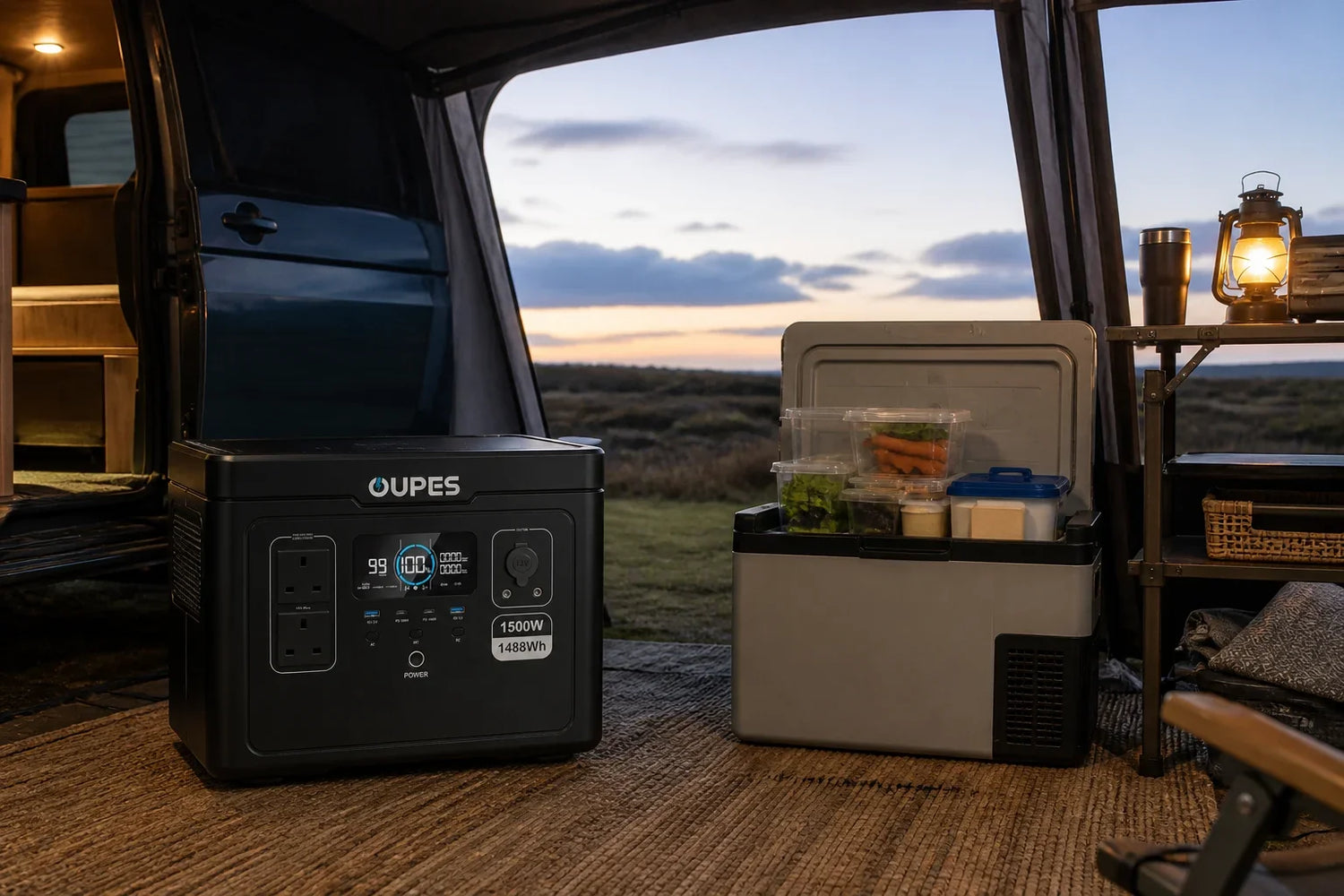
For gaming away from mains, the USB outputs on a compatible OUPES station can recharge controllers and other devices. A controller is a small load, so choose the station from the full gaming setup rather than controller charging alone.
| UK-Site Product | Capacity | Rated Output | Solar | Planning Role |
|---|---|---|---|---|
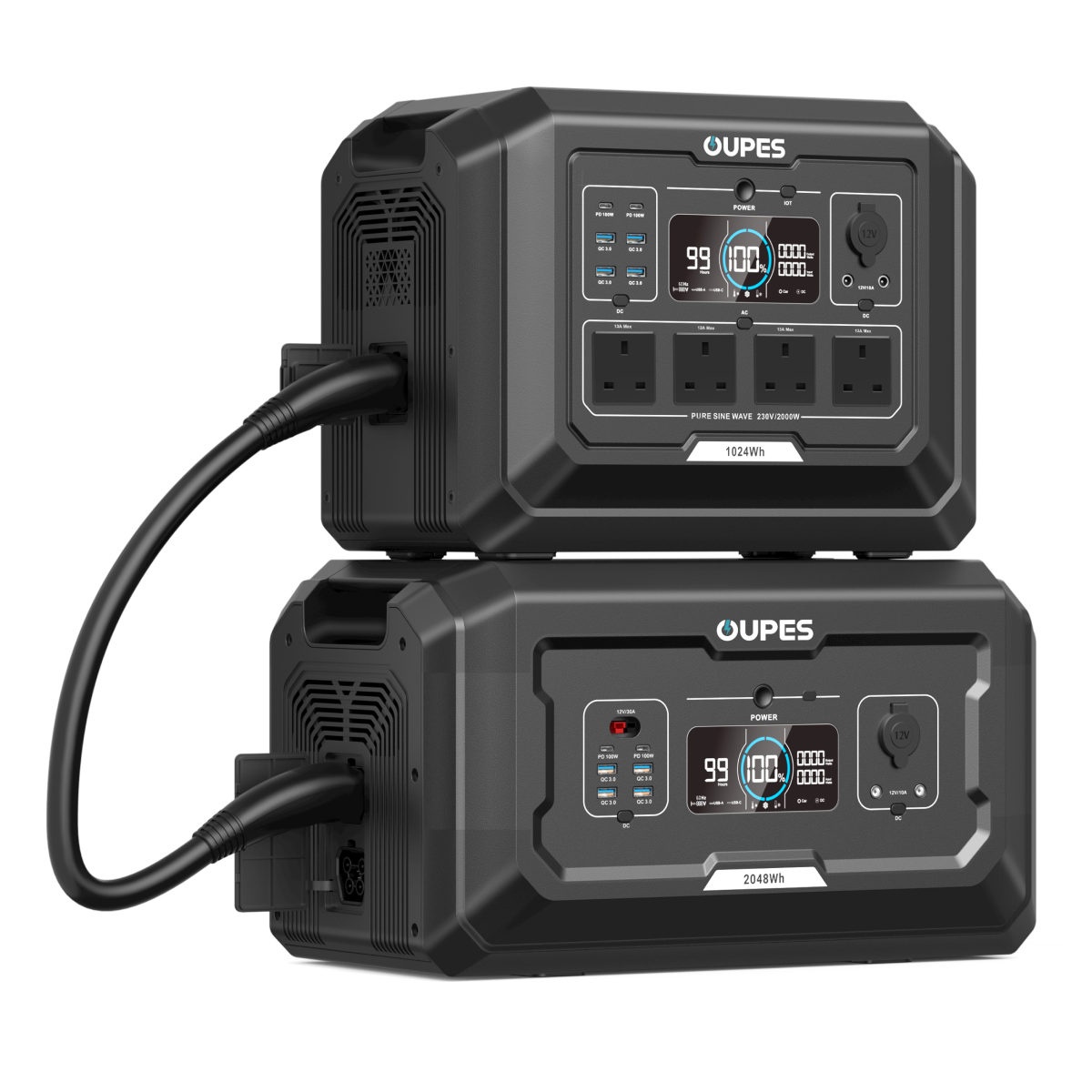
| OUPES Mega 1 | 1,024Wh | 2,000W | Up to 800W | Portable everyday loads and shorter backup sessions |
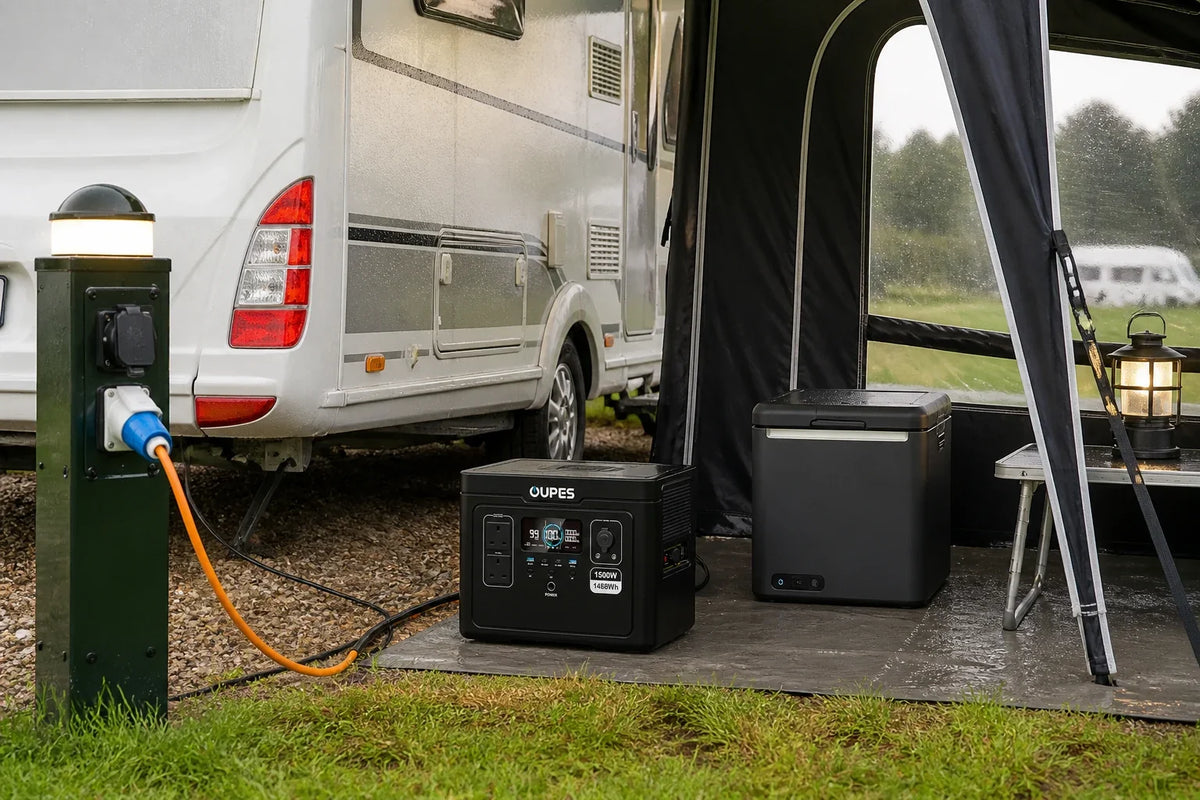
| OUPES Exodus 1500 | 1,488Wh | 1,500W | Up to 480W | Longer low-to-medium-load use where portability matters |
Before ordering from the UK store, confirm the current supplied model’s AC voltage, socket format, cables and appliance compatibility on the product page. Do not infer compatibility from wattage alone.
Practical Checklist
Controller charging checklist:
- Use a known-good Micro-USB cable.
- Check PS4 Rest Mode USB settings.
- Charge with the controller idle.
- Keep the port free from debris and strain.
- Avoid unverified high-voltage chargers.
- Service swollen or overheating batteries.
Safety and Limitations
Do not open or puncture the battery. Disconnect charging if the controller or cable becomes unusually hot.
Keep all USB sources dry and ventilated. A power station’s AC rating is irrelevant when using its USB output; use the port’s published USB specification.
Final Verdict
Allow about two hours for a healthy DualShock 4 controller charging while idle. If it takes much longer, isolate the cable, port, settings and battery condition instead of trying a higher-voltage charger.
Frequently Asked Questions
1. How long does a PS4 controller take to charge?
About two hours under suitable conditions, with variation from use, battery age and source.
2. Can I play while it charges?
Yes, but charging can take longer because the controller is consuming power.
3. Why does it not charge in Rest Mode?
The console may not be configured to supply power to USB ports in Rest Mode.
4. Can I use a phone charger?
Only if its USB output is compatible and reputable; do not use an unsuitable voltage.
5. How do I know it is charging?
The light bar normally flashes slowly, subject to console and controller state.
6. Why does the battery drain quickly?
Battery ageing, vibration, light brightness, wireless use and heavy play can reduce runtime.

Leave a comment
This site is protected by hCaptcha and the hCaptcha Privacy Policy and Terms of Service apply.